Access Apps in OneDev Workspaces with Tailscale
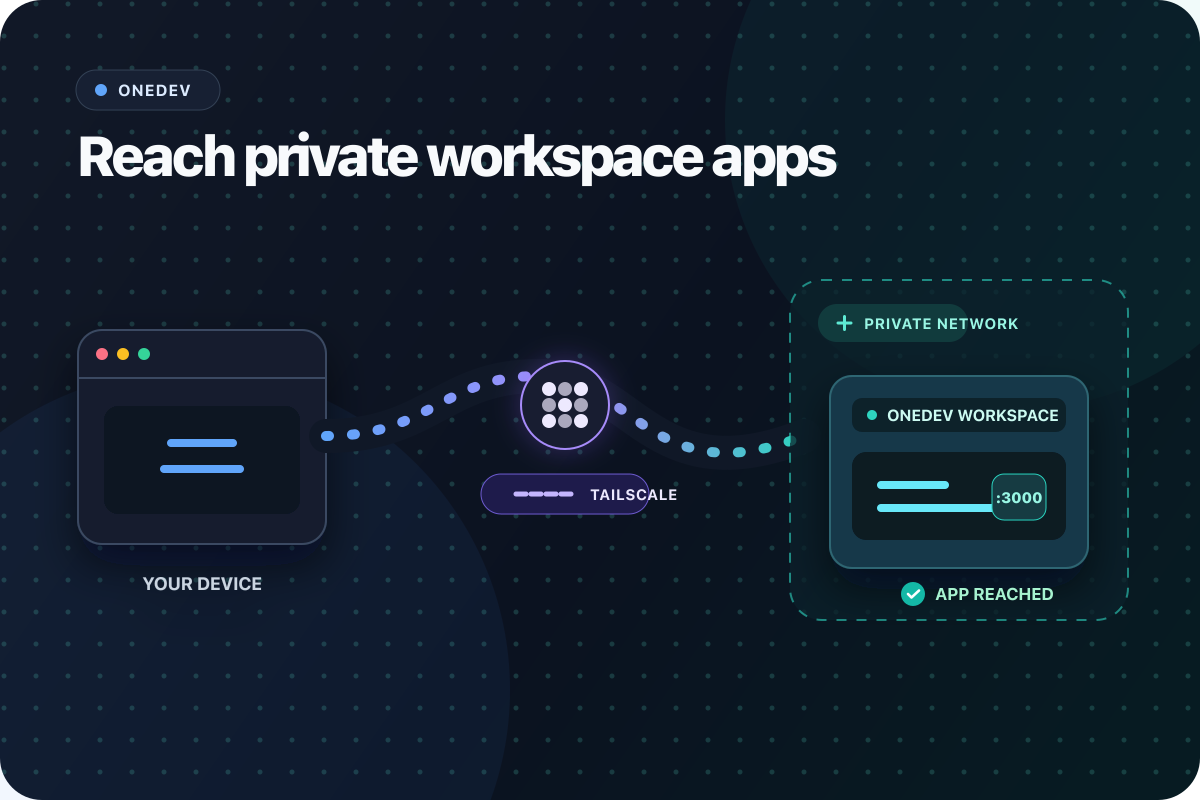
OneDev workspaces are browser-based development environments that run on a server. They let developers work in a consistent, ready-to-use environment without setting up the project and its toolchain locally.
During development, we often start an application inside the workspace to check a feature, inspect the UI, or test an API. When that application listens on a port inside the workspace container or pod, the browser needs a network path to that port.
For a Docker workspace, OneDev can map each container port to a random port on the host. For Kubernetes, a Service provides a stable cluster endpoint, which can be made reachable through an Ingress, Gateway, NodePort, or LoadBalancer. OneDev's built-in port access works out of the box when these endpoints are reachable from the browser. If the Docker host or Kubernetes cluster is inside a private network, Tailscale can connect the workspace directly to your tailnet without exposing an inbound port.
Expose Application Ports
In the workspace spec, add application ports under Exposed Ports. This tells OneDev to make the ports available and include their access URLs in the workspace toolbar.
Each URL uses the network path available to the workspace: a mapped host port for Docker, a reachable endpoint for Kubernetes, or the workspace's Tailscale IP. The rest of this blog configures the Tailscale option.
Set Up Tailscale in the Workspace
Install Tailscale in the workspace image configured by the spec. The OneDev devenv image is a working reference; it pins the Tailscale version and installs the official Ubuntu package:
RUN mkdir -p --mode=0755 /usr/share/keyrings \
    && curl -fsSL https://pkgs.tailscale.com/stable/ubuntu/noble.noarmor.gpg \
       -o /usr/share/keyrings/tailscale-archive-keyring.gpg \
    && curl -fsSL https://pkgs.tailscale.com/stable/ubuntu/noble.tailscale-keyring.list \
       -o /etc/apt/sources.list.d/tailscale.list \
    && apt-get update \
    && apt-get install -y tailscale \
    && rm -rf /var/lib/apt/lists/*
Next, create an ephemeral auth key in the Tailscale admin console. Use it when adding these setup commands to the workspace spec:
sudo tailscaled --state=mem: --socket=/var/run/tailscale/tailscaled.sock --tun=userspace-networking &
sudo tailscale up --auth-key=<ephemeral-auth-key>
These commands create a stateless Tailscale node without requiring /dev/net/tun.
Add this teardown command to the workspace spec:
sudo tailscale logout
Logging out removes the ephemeral node promptly instead of waiting for it to age out.
Run the Application and Access It
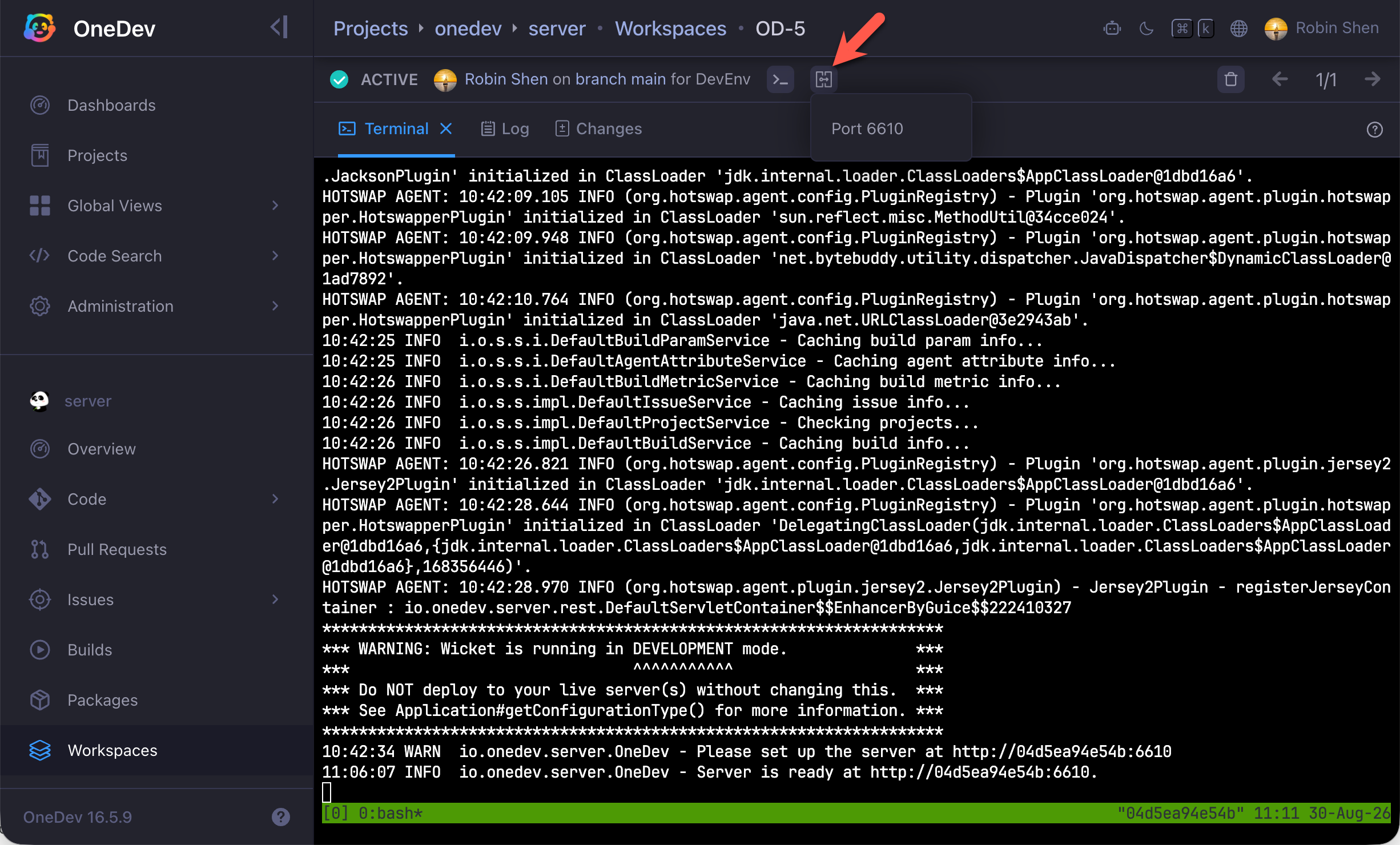
Start the application inside the workspace, then click the access-URLs icon in the workspace toolbar and select its port. In this example, OneDev's development server is running on port 6610:
With the setup complete, your running application is always one click away, making it easy to test changes as you develop.