Jev Integration: Smarter Issue Fields and Faster Symbol Navigation

OneDev now integrates with Jev from TypeSafe AI to suggest issue field values, classify incoming support emails, and refine symbol navigation. Jev makes structured choices from the options OneDev provides, making it a natural fit for these everyday decisions.
Connect the Jev API
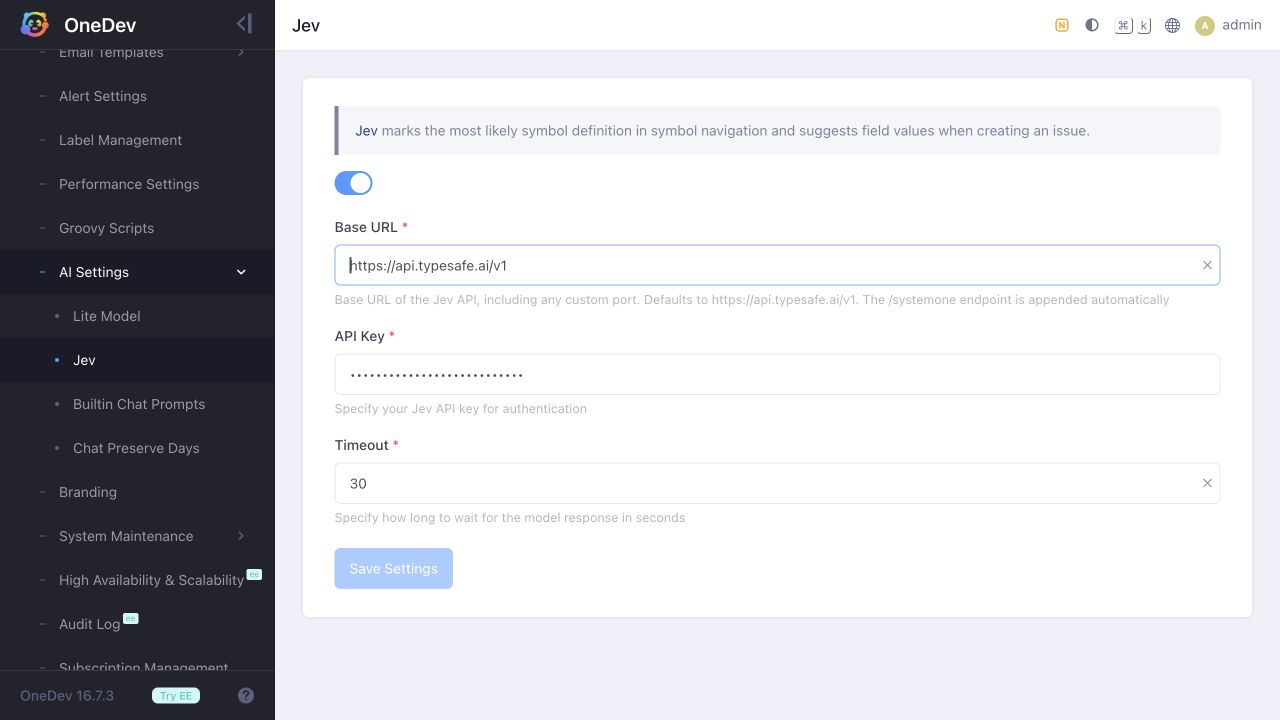
Get an API key from the TypeSafe dashboard, then open Administration → AI Settings → Jev and enable the integration. Enter your API Key, keep Base URL as https://api.typesafe.ai/v1, and click Save Settings.
Suggest Fields When Creating an Issue
Under Administration → Issue Settings → Fields, edit a choice field such as Type or Priority:
- Turn off Allow Empty Value to make the field required.
- Leave its Default Value unset.
- Give the field a clear description and meaningful choices; Jev uses these to interpret the field.
Open a new issue in your project and enter a title and description. OneDev automatically suggests values for eligible, empty fields. Existing selections are preserved, and you can change a suggestion before saving. If Jev cannot choose with at least 75% confidence, the field stays empty for you to fill in.
In this example, typing Server is crashed as the title is enough for Jev to suggest Bug for Type, and Critical for Priority.
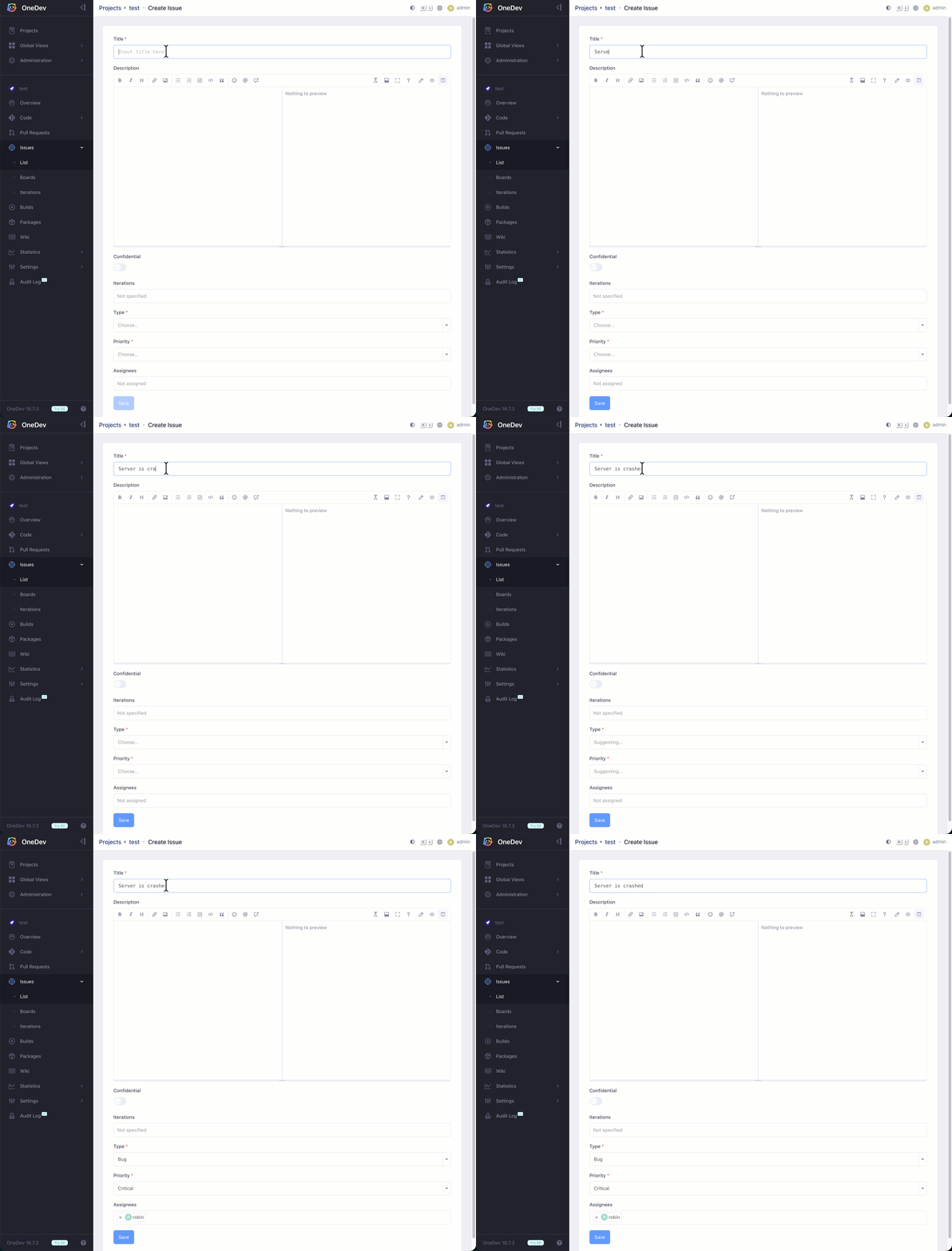
Once Jev has classified the issue, OneDev can also suggest the appropriate assignee based on that classification. Configure the Assignees field to use a Groovy script as its default value—for example, to route issues to different people depending on their Type or Priority. See the Default Assignee tutorial for a step-by-step example you can adapt to these fields.
Populate Fields for Issues Arriving by Email
First configure Administration → Mail Service with incoming email checking enabled, and enable Administration → Service Desk Settings. See the service desk guide for mailbox and project routing setup.
In Service Desk Settings → Issue Creation Settings, add or edit the entry matching your project. For each choice field to populate automatically, select Decide by Jev and choose a fallback Default value. This option appears once Jev is configured. For example, use it for Type and Priority, with Support Request and Normal as fallbacks.
Save the entry and settings. When OneDev creates an issue from the mail inbox, Jev selects field values using the email-derived issue title and description. If confidence is below 75%, no choice fits, or Jev is unavailable, OneDev uses the fallback. These fallback values belong to the service desk rule; they do not require setting a default on the issue field itself.
Just like issues opened from UI, incoming email issues can also be routed to different assignees based on their Type or Priority using a Groovy default-assignee script.
Faster Symbol Navigation
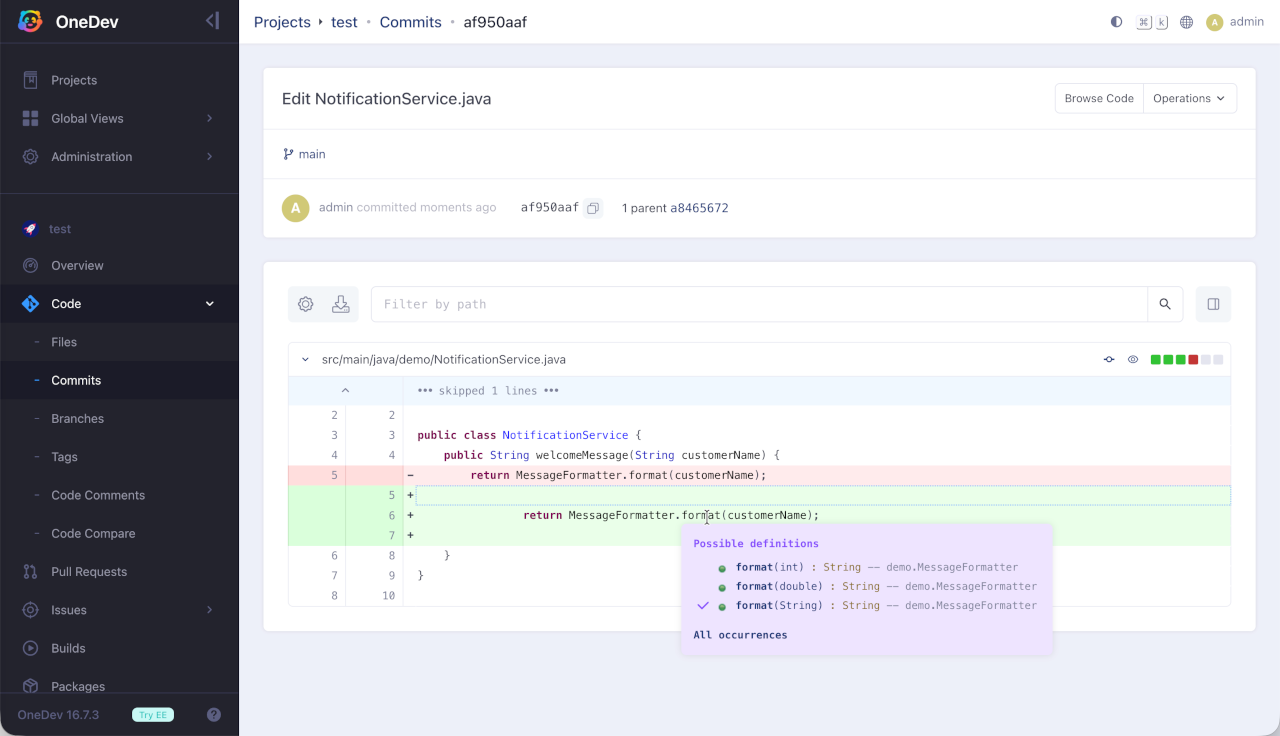
When symbol navigation finds multiple possible definitions, Jev uses the source context, imports, and enclosing scope to mark the most likely match. This refinement is much faster than the previous Lite Model approach, making it more practical to follow symbols while browsing code. Once the Jev API is configured, no additional symbol-navigation setup is needed.
In this diff, hovering over format(customerName) shows three overloads. Jev marks format(String) with a check because customerName is a String, distinguishing it from the int and double overloads.